Connecting the keypad to Hubitat Safety Monitor
The keypad on its own just sends button presses to Hubitat. It's Hubitat Safety Monitor (HSM) that turns those presses into an actual arm/disarm state — and sends the result back so the screen updates. Skip this and the keypad still "works," in the sense that it fills the logs with button presses that go nowhere.
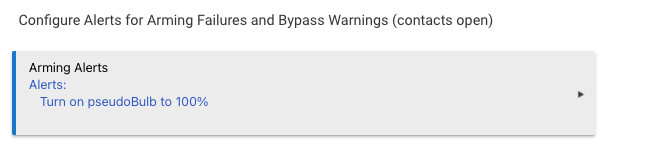
One easy-to-miss requirement: HSM won't send state back to a keypad unless at least one alert is configured for arming — even one that does nothing meaningful. Skip it, and the keypad's screen never updates no matter how correctly everything else is wired. More on this below.
Where this lives
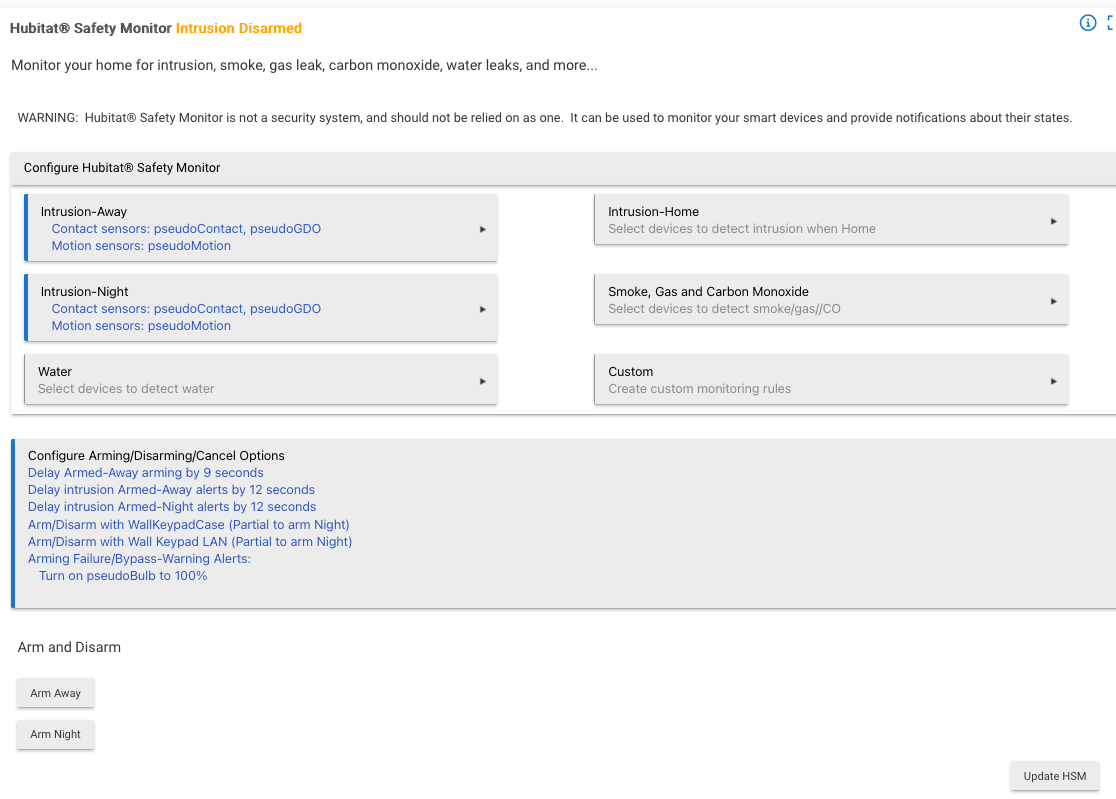
HSM's own appThis isn't a separate integration to install — it's a section inside HSM's existing configuration. HSM's intrusion detection, delays, and monitored devices are all generic Hubitat setup, well covered by Hubitat's own HSM documentation. What follows is only the part specific to connecting a keypad.
Add the keypad
inside that boxTapping that box opens a larger page. Under Use keypad(s) to arm/disarm, select your keypad's driver device — it'll show up by whatever name you gave it back in step 2 of the setup guide.
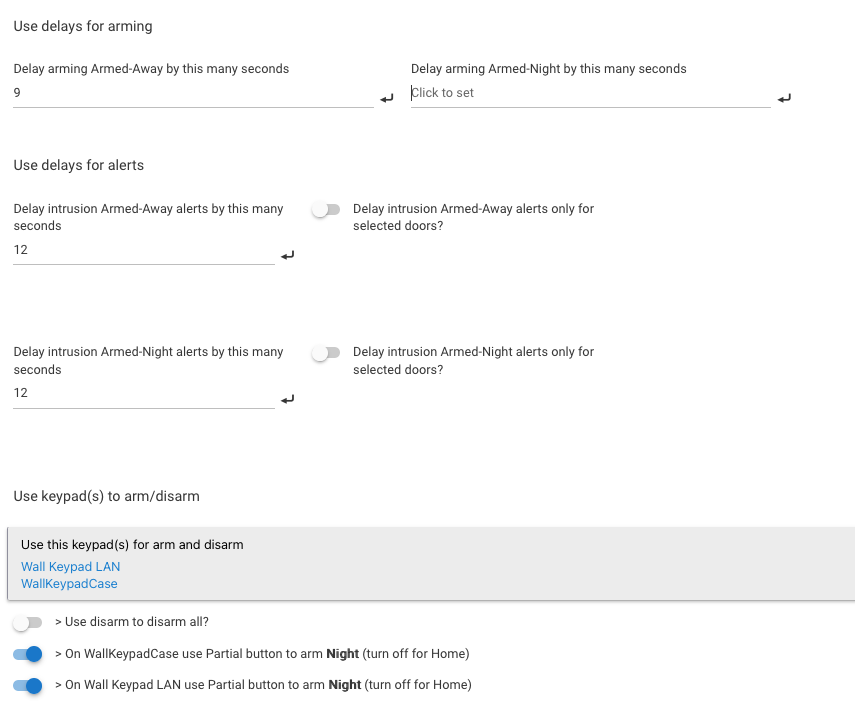
One toggle per keypad. The keypad's physical ARM button always means full Away — there's no toggle for that. Partial is the only button with a choice: leave this on and Partial arms Night; turn it off and Partial arms Home instead.
Generic HSM behavior, not keypad-specific — whether disarming clears every armed state at once versus per-zone.
What the buttons actually mean
terminology, translatedArmed - AwayFull arm. No toggle — always maps here.
Armed - NightDefault. Toggle off to send Home instead — see above.
Disarmed
The alert that has to exist
the part that costs the most triesFurther down HSM's config is a section for arming-failure and bypass-warning alerts. It looks optional — like something for notifying you if a door's left open when you try to arm. It isn't optional. Without at least one alert action configured here, HSM doesn't push state to the keypad at all, even when arming and disarming both work correctly from HSM's own side.